
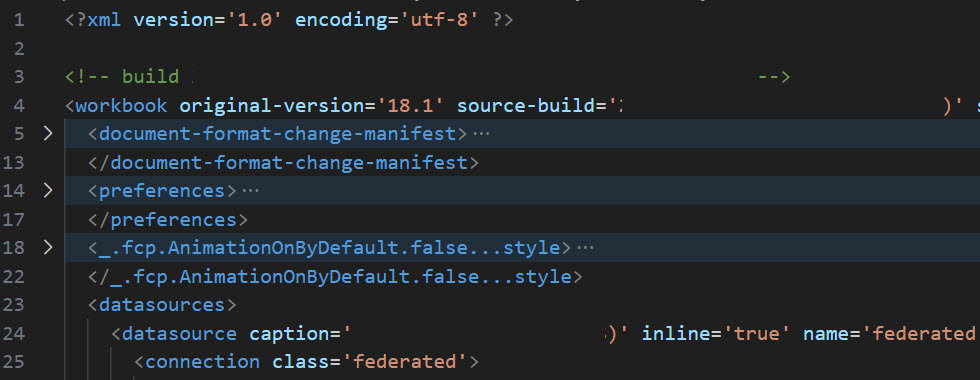
In this post I attempt to unravel the structure of Tableau Workbook files (TWB & TWBX). I explain some use cases where you might need to dig into the underlying structure of the workbooks. Additionally, I’ll introduce some available tools for modifying the structure. Lastly, I will explain how to retrieve the Tableau Admin Views TWB file.
Why review structure?
- Server Migration – You might encounter a scenario where a source DB was already migrated from one DB type to another type. As a result you will not be able to edit and view your Tableau Workbook ‘Custom SQL’ – any attempt to edit it will return a connection error.
- How to solve:
- Open the TWB (XML) file and fetch the ‘Custom SQL’ from the element
<relation>, you will find it aftertype='text'. - Create in Tableau Desktop a ‘New Data Source’ under the new target database using the custom SQL.
- ‘Replace Data Source’.
- Lastly, ‘Close’ the old data source from the decommissioned database.
- Open the TWB (XML) file and fetch the ‘Custom SQL’ from the element
- How to solve:
- Advanced Configuration – It is possible you use or have used in the past some advanced configuration such as a TDC (Tableau Datasource Customization) file. You published a workbook but you are uncertain if it uses this configuration.
- How to solve:
- Download the report TWBX file.
- Rename file to extension ‘.zip’.
- Open file and extract TWB file.
- Review TWB XML code-
- Look under the element
<connection>and look specifically if anything is mentioned underodbc-connect-string-extras.
- Look under the element
- How to solve:
The TWB XML Structure:
Below I outlined the XML structure used in TWB files and the elements I find interesting:
<workbook– The root element.source-build='<Tableau Desktop Version>'
<datasources>– The element containing all data source(s).<datasource– The element for a specific data source.name =- ‘
federated.<generated name>– typical for any data source connection. 'Parameters'– used to define workbook parameters.
- ‘
<column– The element for any workbook parameter or calculated field.<connection -The element for connections.class='federated'<named-connections><named-connectioncaption='<caption for the connection>'name='<connection class>.<generated name>'<connectionclass='mysql' / 'redshift' / 'postgres' / 'excel-direct'...filename='<Excel/CSV/JSON... path and filename>‘dbname='<db name>'odbc-connect-string-extra– Advanced connection configuration.port='<db port>'server='<server DNS/IP>'username='<username>'
<relation- Can also be mentioned as
<_.fcp.ObjectModelEncapsulateLegacy.true/false...relation connection= '<connection class>.<generated name>'name= '<table name or custom SQL name>'table='[<table name>]'– only used if type is ‘table’type='table'used for table object'text'used for custom SQL- Typically followed by the Custom SQL
- Can also be mentioned as
<metadata-records><metadata-record– an element defining each column and their data type , aggregation etc.
<extract– An element for any extract<connectionaccess_mode='readonly'class='hyper'dbname='<path>.hyper'– The Tableau Hyper extract fileschema='Extract'tablename='Extract'
The TWBX Structure:
A TWBX file is a compressed zip file that contains a workbook (XML) file and any extract and image files. You simply need to modify the ‘.twbx’ extension to ‘.zip’ in order to open it and see the files.
A typical TWBX structure will be:
- ‘<workbook name>.twb’ – This is the workbook XML file
- ‘Data’ – This is the parent folder for any additional files
- ‘<workbook name> Files’ – Sub folder for extracts
- ‘<extract name>.hyper’ – a specific extract file
- ‘<workbook name> Files’ – Sub folder for extracts
document-api-python
The ‘document-api-python’ is an official but unsupported tool that allows you to modify workbook and data-sources structure without making manual adjustments to the XML structure (which should always be a last resort).
Tableau Server Admin Views TWB
Tableau Server provides pre-built admin views to help you monitor server activity. In old Tableau Server versions you could find the workbook file under a sub-folder ‘WEB-INF\admin’.
In recent versions you cannot find the files in the sub-folder. However, there is a workaround – The VizSQL Server saves a temporary copy of the workbooks being viewed.
Workaround:
- View one of the Admin views:
- e.g. https://<tableau server>/#/server/analysis/BackgroundTasksforExtracts
- Go to the VizQL temp folder:
- e.g. C:\ProgramData\Tableau\Tableau Server\data\tabsvc\temp\vizqlserver_<N>.<Version>\
- Order the files based on modification date.
- You should see a file named ‘tabbed admin views<generated name>twb’ .
- Save a copy of the file and add extension ‘.twb’.
- Open the file in Tableau Desktop.
- You will need to modify the connection to point it to Tableau PostgreSQL repository
- If not already done, you need to enable access to the Tableau repository
A side note – you can retrieve other workbooks from the VizQL temp folder, they will be named ‘repoItem<generated number>.tmp’, simply rename to ‘.twbx’ extension to open.
 Business Intelligence Tech Tips